Visual Click

Designer Manual

DSRAZOR Manual - Adobe Acrobat Format (4.8MB)
last update: 2003.11.25

The Designer manual is currently being updated.  Please note that the new Designer name is DSRDES and the files it produces are saved with the file extension .DSR.  Previously the Designer name was CVMDES and it saved to the .CVM file extenstion.
Download Manual Get Adobe Acrobat

This handy reference guide will acquaint you with:

For more information while using the Designer (CVMDES) be sure to reference the extensive and thorough online HELP.

Welcome!

Welcome to DSRAZOR, the easiest way to design interactive applications that help you manage NDS and your NetWare file servers. With DSRAZOR you are able to be in control of what is important to you. You may use one of our many predefined solutions, customize one or even create your own! All the power of DSRAZOR is realized through its point and click, patent pending designer interface. Through this simple yet powerful interface you can create your own solutions everyday.

Custom solutions without custom programming

When we created DSRAZOR we had you in mind. You receive our years of networking and programming experience in a simple point and click interface. Now, without any custom programming or script writing you control what you see and where it is on the screen. And with DSRAZOR you can change your solutions as often as your needs change. By using DSRAZOR's point and click interface, you can build and rebuild your own solutions in minutes. With DSRAZOR you only see what is important to you.

Designed for the Administrator

We know you are busy, always a problem to solve. You know what you want. You need a means to an end. Now with DSRAZOR you can guide your own solutions development with only the knowledge of what you want done. We understand you have daily and every changing needs. You need one solution for one day, another for the next. Your feedback on your needs is used to constantly improve DSRAZOR . With that in mind, we offer 12 months of free upgrades and enhancements with every purchase of DSRAZOR .

Getting started now

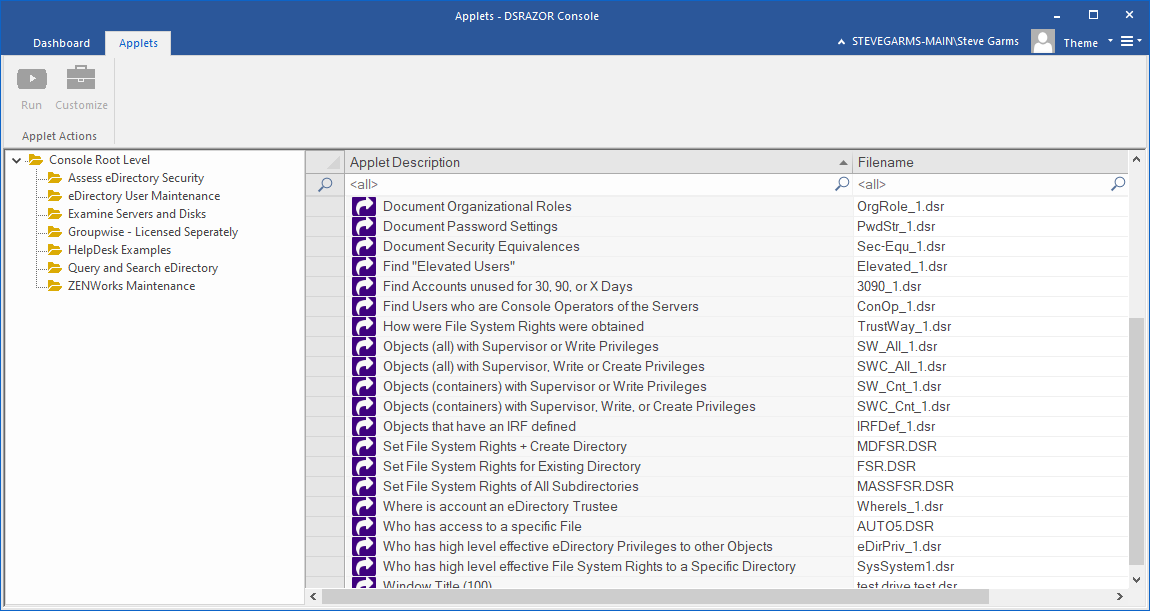
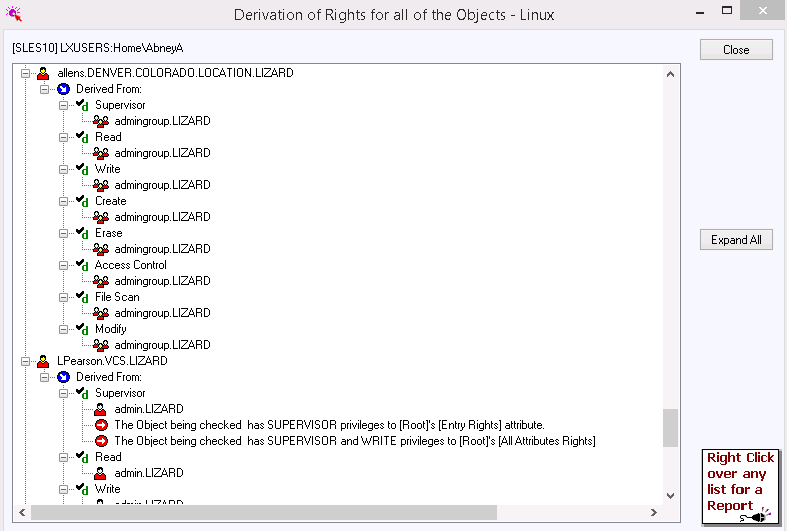
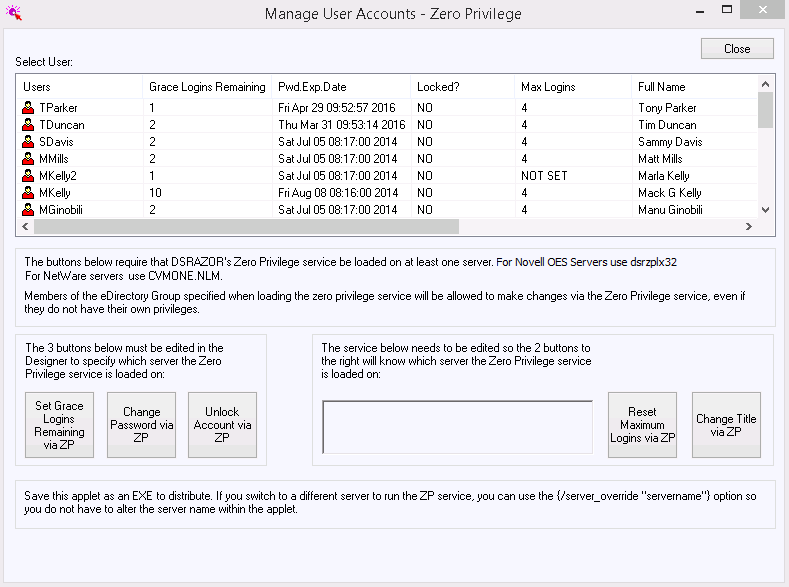
If you have not yet experienced a DSRAZOR solution, we encourage you to do so. Check out the directory where you installed DSRAZOR . There you will find CVMRUN.EXE and some supporting programs (two DLLs and EXE). Try the TRUSTHOW.CVM solution, i.e. "CVMRUN TRUSTHOW". It will list the NetWare servers you are currently attached to and list their volumes and active user connections. Drag a user to the box on the right. Drag a volume (or directory or file) to the box on the right. Now open up the "dragged" user to view what rights they have on the selected volume/directory/file. Be sure to Right Click with the mouse cursor over this user to print out the results!

Right Click enabled for all DSRAZOR solutions

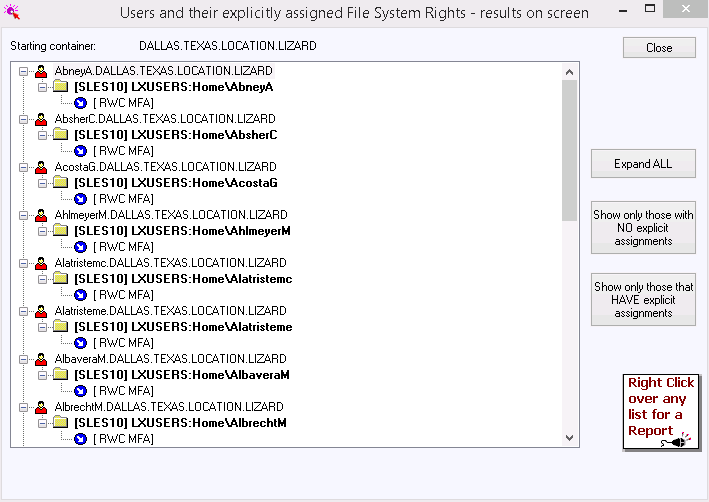
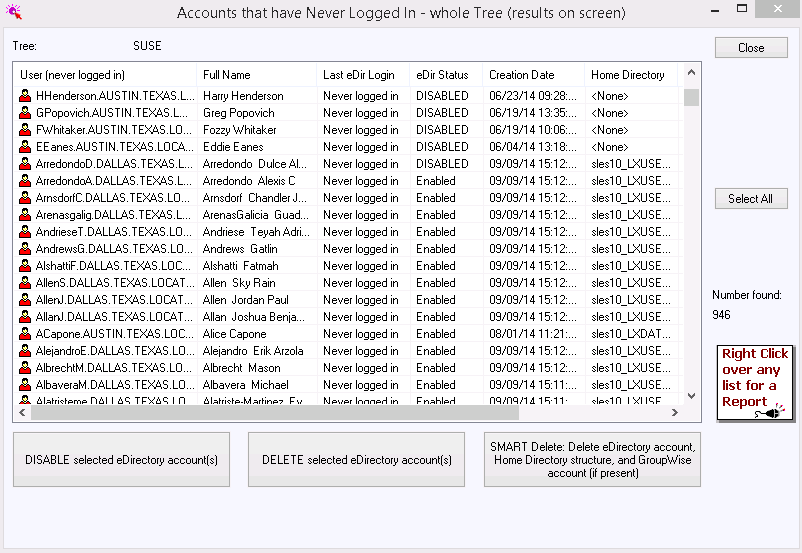
You can save the data to a file of any list you see in any DSRAZOR solution. By hovering the mouse cursor over the intended object and clicking the Right mouse button you can choose what to do next!

Using the DSRAZOR Designer Interface

When you first bring up CVMDES you will be greeted with a screen that contains a default window with two buttons and a Treeview control.
Take notice of the the " Right Click on any control to define " message on the Treeview. You can define what happens, we call them "services", in any screen control (defined below) by positioning the mouse cursor over it and clicking the right mouse button.

Screen Controls, which to use

Screen Controls, or simply 'controls', are elements of the screen that are used to hold and interact with data. The data in each control is provided by one or more services. DSRAZOR uses 'common' windows screen controls. You can choose from TreeViews, ListViews, DropDowns, Buttons, Groupboxes, singular data item displays (i.e. Text or Label) and Edit fields.
A TreeView control is simply a hierarchical list of items, as demonstrated below:
Treeview example
A ListView control, see figure below, has columns. The first column is a list of items with one or more additional columns of singular data items. Further, you can sort a ListView by clicking any of its columns. You may also adjust the size of the columns by 'dragging' them.
Listview example
A DropDown control is a simple list of items. There is no hierarchy or columns, just a list of items. You only see a single item unless you select to drop the list.
Dropdown example
A Button control is just that, a button. The button may exit you from the current screen or it may open another. There are actually many other button services including bringing up a 'canned' window such as Change Password or Rename.
A Groupbox control allows you to frame other controls. The Groupbox itself has nothing more than an optional name. There are no services for Groupboxes.
Both the singular data item (Text/Label) display and Edit field are 'boxes' that show a single item of data. You may also use the singular data item (i.e. Text/Label) to enter notes or instructions.

Editing Screen Control captions and entering comments

If you right click on any Screen Control (except Text and Edit) including the window title bar you will be able to enter a name/caption for that Screen Control. And, if right clicking on the title bar for the first window, you can enter comments for your solution.
The comments are available when you are using your solution (with CVMRUN) if you click on the ICON at the far left of the title bar (the same one you can double click on to close the window) and select "About this Solution".

Services, populating the Screen Controls

On its own a Screen Control is empty. To display or connect to data a Screen Control must be associated with a service. The TreeView and ListView Screen Controls can be populated by one or more services. Right click on a Screen Control to choose how to populate it. After you right click you will be presented with a screen with a list of available services.
The following details the different types of Services and the Screen Controls they are associated with.

Listing Services

This type of service provides lists of results, i.e. list of users. For the ListView Screen Control you may specify column header names and column widths.
Listing Services are available for TreeView, ListView and DropDown Screen Controls.

Display Services

This type of service provides for a single data item, i.e. users' full name; the number of files a workstation has open; the server's %cpu in use; etc. Additionally, you may choose the Static Text service that allows you to enter your own comments/description/notes that will be displayed when you use the solution with CVMRUN.
Display Services are usually used in the Text Screen Control. However, Display Services are also available for use as Rules for Listing Services.

Button Services

This type of service usually provides for some action such as closing a window or opening another. Some actions also include Change Password, Reset Intruder Lockout and Modify Time Restrictions. You may choose the name on the button (i.e. "OK"). You may designate a hotkey by placing the "&" character before the letter of your choice, i.e. "&OK". The "&" will be converted into an underscore for the letter it precedes when using it with CVMRUN.
Button Services are only available for the Button Screen Control.

Edit Services

Similar to Display Services, except that you may change the data presented. A Button of your choice will determine when to apply the changed data. Although you may choose any button, typically the "OK" button would be used to indicate when to apply the changes.
Edit Services are only available for the Edit Screen Control.

Finding out how many services are in your build

If you select "Help", "About DSRAZOR " from the main menu of CVMDES you will see a breakdown of the number of services available.

Linking Screen Controls, the power beyond

One of the most powerful features of DSRAZOR is the ability to link Screen Controls. Linking Screen Controls allows you to choose how data flows between Screen Controls. Almost any combination of Screen Controls can be linked together.
As an example let's say you define two TreeViews on the same window. The first lists all servers you are attached to. The second lists all the active user connections on the currently selected server from the first TreeView.
To link these two TreeViews you would define the first as having just the single service to list servers you are attached to. And you would define the second TreeView to list active user connections and you would then select the first TreeView/List Attach Servers in the "Connect to" section of the service selection screen.
Linking Screen Controls is just that easy.
You may link any number of Screen Controls together. Additionally you may link a Screen Control to others in the same window or from other windows.

Defining names for your Screen Controls

When you create a Screen Control it is given a default name, i.e. TreeView (101).
When you start linking controls you may want to use names other than the defaults. You may change the names at any time. To change, right click on the Screen Control and you will find the name field in the lower right corner. You will need to add a service to a TreeView, ListView or DropDown Screen Control before you can edit the Screen Control name.

Viewing your Solution's Map

Select "File", "Window/Control Map" from the main menu of CVMDES to view what Screen Controls and services are defined.

Update Interval Seconds

When defining a service for a Screen Control you will, in most cases, be able to define "update interval seconds." This setting is used by CVMRUN when using your solution. If the update interval is set, the display for that particular service will be refreshed at that interval.

Search Manual Entry Button

The Search Manual Entry is available on many services (particularly NDS services) to assist in defining a service for a Screen Control. Use of this feature does require you to be using CVMDES on the network intended for your solution. When you click on this Search button CVMDES will invoke a Wizard DLL for that service. The Wizard DLL gathers information from your currently attached network and displays it in the fields to the left of the Search button. You can choose one item from some lists and others you can choose multiple items.
Each item you select will be used to define a rule, one for each item.

Refining your lists with Rules

Because you may require specific results DSRAZOR allows rules. The rules are Boolean and may be compound.
In general, rules act as a filter that will be applied to the results of the service to which they are included (i.e. only show users whose names are exactly 8 characters long or only start with the letter H, etc.). However, some rules govern where to gather results from (i.e. which Organizational Units to search in NDS). Additionally, some rules use relationships with other services (i.e. only show users who have not logged in since March 3 or only list users with more than 30 files open, etc.).

Aligning, ordering and sizing your Screen Controls

From the main menu of CVMDES you will find a number of useful editing features. You can align your Screen Controls a number of different ways. For Button Screen Controls you can adjust them to be evenly aligned on the right or bottom. If you use the keyboard to interact with your solution, you will find the ability adjust the TAB order useful.

Saving your solution (*.CVM) and determining your Build Date

Your solution is saved as a *.CVM file. The file contains binary information and is interpreted at runtime by the CVMRUN executable.
If the Build Date (or, simply, Build) of your CVMDES is greater than the Build of your CVMRUN you might experience problems when using your solution. You can check the Build of CVMDES from by selecting "Help", "About" from its main menu.
You can check the Build of CVMRUN by running it and clicking on its ICON in the top left corner and selecting "About This Solution".

About future updates of DSRAZOR

As the product is enhanced there may be changes affecting your existing *.CVM files. Because the CVMRUN module cannot presume to update these files with any format changes, you must use CVMDES to update. You will be notified by CVMRUN that an older format *.CVM file is being used and must be updated.
To upate to a new version, select the menu File/Update CVM Version.
It is recommended that you use the same Build of CVMDES and CVMRUN.

Using your solution

Use CVMRUN to experience your solution. If you run CVMRUN without any parameters it will present you with a Console that will allow you to choose from the included *.CVM files. If you do specify a *.CVM file as a parameter for CVMRUN it will skip the Open File Dialog and proceed with running the *.CVM file.
To automatically invoke CVMRUN, create a File Association via the Windows Explorer. From the Explorer menu select "View", "Folder Options Options", "File Types", "New Type." Then you only need to "click" on a *.CVM file to experience it.

Trial Mode and Tokens

Because DSRAZOR uses a Token to authorize its full use you may experience "TRIAL MODE" messages. Generally this message indicates that only the first 3 items of any listing service will be shown. Specifically this message indicates there is not a proper Token available.

How to install DSRAZOR

Just copy your purchased Token into the DSRAZOR directory where CVMRUN.EXE resides.

What are Tokens

Tokens for DSRAZOR are small text files that authorize the full use of *.CVM files with CVMRUN. Note that CVMDES does not require a token.
An example Token file is:
DSRAZOR License for 10 Servers
License Valid for All Software Builds Prior to Build Number 2000.01.04
0306000C. . . (about 100 characters of encrypted token data)

Tokens include either the name of the authorized user (i.e. admin04.etc.otc.acme) or the authorized server. Site license tokens include the number of servers they will authorize, this number must match or exceed the total number of servers in your network.

Token files are installed by merely copying them to the directory you installed the product to or where CVMRUN is kept

Because we believe you should get the most for your purchase we include 12 months of enhancements with every Token purchased.
All Tokens are good for Builds through the next 12 months. For example, when you purchase a Token, it is time stamped ahead one year. So, if you purchased a Token December 2, 1999, the Token you receive would be time stamped December 2, 2000.

Tokens are not a Time Bomb

Any *.CVM file you create with CVMDES prior to the Date of your Token can be used forever and ever. The Date in the User Tokens is NOT a Time Bomb.
The Date in the Token indicates which CVMRUN.EXE's it will authorize. Any CVMRUN.EXE's with Build Dates equal to or greater than the Token's Date will require a new Token to be fully authorized (i.e. not run in Trial Mode).

Further Support

If reading this guide and the online help in CVMDES does not answer your questions, please e-mail us at: support@visualclick.com
Or, visit our Discussion Groups online at forums.visualclick.com 


Downloads | Products | Solutions | Purchase | Support | Partners | Success | Company
Copyright 2008 | Visual Click Software, Inc | Privacy Policy | Site Map